If you work with AVEVA InTouch (formerly WonderWare InTouch), you’ve probably heard of HistData — the built-in mechanism for extracting historical log data from InTouch systems. It’s been part of InTouch for decades, and for many users, it’s the only method they know.
But HistData is not what most people assume it is. It’s not a standalone export tool you can just open and click “Export.” It’s a DDE-based integration that requires significant setup within the InTouch development environment. This guide explains exactly how HistData works — and what to do when its complexity becomes a problem.
What Is HistData?
HistData is a DDE (Dynamic Data Exchange) server that ships with InTouch. It allows InTouch applications running in WindowViewer to extract historical log data from .LGH files and write it to CSV output files.
Key facts about HistData:
-
It communicates via DDE — an older Windows inter-process communication protocol
-
It requires WindowMaker (the InTouch development environment) to set up
-
It runs under WindowViewer (the InTouch runtime)
-
It outputs CSV files only
-
It can only export data from tags that are assigned to historical trend pens
-
It has been part of InTouch since the early versions and remains largely unchanged
HistData is documented under “Accessing Historical Tag Values from Other Applications” in the official InTouch help — which already hints at its nature: it’s not a standalone tool, but a bridge between InTouch and other applications.
How HistData Actually Works
Unlike typical export tools, HistData is not something you simply launch and use. It requires a multi-step setup process within the InTouch development environment.
The Setup Process
According to the official AVEVA documentation, using HistData involves four steps:
-
Create a HistData Access Name — Define a DDE connection in WindowMaker
-
Create HistData I/O Tags — Set up 12+ special tags that control the export
-
Create a HistData Window — Build a custom window with buttons and fields
-
Run HistData — Execute the export under WindowViewer
Let’s walk through each step.
Step 1: Create a HistData Access Name
In WindowMaker, go to Special → Access Names and add a new access name:
| Field | Value |
|---|---|
| Access Name | Your choice (e.g., “HistDataViewSt”) |
| Node Name | The machine where the log files are located |
| Application Name | HistData (without .exe) |
| Topic Name | Same as Access Name |
| Protocol | DDE |
| When to advise server | “Advise all items” |
The Access Name and Topic Name must match. This creates a DDE channel between your InTouch application and the HistData server.
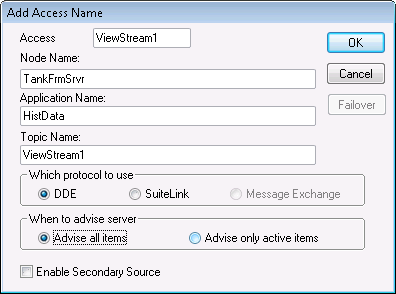
The Add Access Name dialog in WindowMaker. Select “DDE” as the protocol and set the Application Name to “HistData”.
Step 2: Create HistData I/O Tags
| Tag Name | I/O Tag Type | DDE Item | Purpose |
|---|---|---|---|
| HDWDATADIR | Message | DataDir | Path to the log file directory |
| HDWDBDIR | Message | DbDir | Path to the database directory |
| HDWDURATION | Message | Duration | Time span to export |
| HDWERROR | Message | Error | Error message output |
| HDWFILENAME | Message | FileName | Output CSV file path |
| HDWINTERVAL | Message | Interval | Sampling interval |
| HDWSTARTDATE | Message | StartDate | Start date (mm/dd/yy format) |
| HDWSTARTTIME | Message | StartTime | Start time |
| HDWSTATUS | Message | Status | Success/failure status |
| HDWTAGS | Message | Tags | Tag names to export |
| HDWTAGS1, HDWTAGS2 | Message | Tags | Additional tag names (for long lists) |
| PRINTTAGNAMES | Discrete | PrintTagNames | Include tag names in output |
| HDWWRITEFILE | Integer | WriteFile | Trigger to start export |
That’s 13 tags just to configure a single export operation. Each tag must be correctly defined as an I/O tag with the right type and DDE item name.
Note: The HistData Wizard (covered below) can create most of these tags automatically — except PRINTTAGNAMES.
Step 3: Create a HistData Window
You need to build a custom InTouch window that includes:
-
Text fields linked to the HDW tags (via User Input Links)
-
An “Initialize Data” button with action scripts to set tag values
-
A “Write File” button linked to the HDWWRITEFILE tag
-
Status indicators linked to HDWSTATUS and HDWERROR
The window serves as the user interface for configuring and triggering the export. You’re essentially building your own export dialog from scratch.
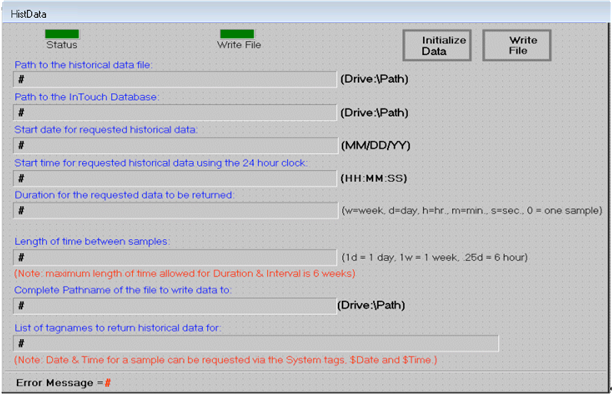
A typical HistData window in WindowMaker. Each field is linked to an HDW I/O tag: Data Dir, Db Dir, Start Date/Time, Duration, Interval, Tags, Error Message, and Status. The “Initialize Data”, “Write File”, and “Save To File” buttons trigger DDE actions.
Step 4: Run the Export
-
Start HistData.exe and minimize it (it runs as a background DDE server)
-
Start WindowViewer and open your HistData window
-
Click “Initialize” to populate the HDW tags with your export parameters
-
Click “Write File” to generate the CSV output
If successful, the Status indicator turns ON. If it fails, the Error Message tag shows the cause.
The HistData Wizard: A Shortcut
Recognizing that the manual setup is tedious, AVEVA provides the HistData Wizard to automate tag creation.
Using the Wizard
-
In WindowMaker, open a window that includes a historical trend
-
Go to Wizards → Trends → HistData Wizard
-
Click on the trend window to place the HistData object
-
Configure the wizard:
-
Enter a name for the HistTrend tag
-
Set the number of records to write per CSV file
-
-
The wizard creates the HDW-prefixed tags automatically
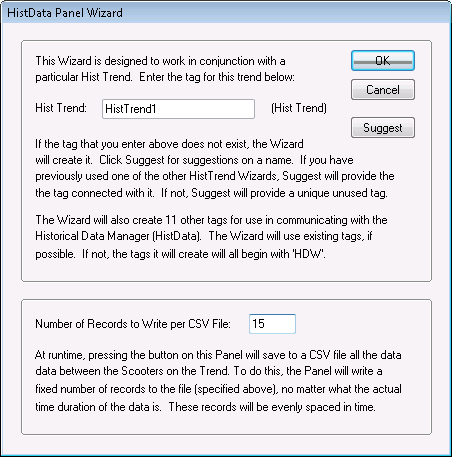
The HistData Wizard dialog. You specify the HistTrend tag name and the number of records to write per CSV file. The wizard reads the tag list from the trend pens automatically.

The “Save To File” button on the HistData window opens a file dialog to set the output CSV path (linked to the HDWFILENAME tag).
Wizard Limitations
Even with the wizard, there are important constraints:
-
The output file can only contain data from tags currently assigned to the trend pens — you can’t export arbitrary tags
-
You still need WindowMaker and WindowViewer running
-
The wizard doesn’t create the PRINTTAGNAMES tag — you must add it manually
-
The data resolution “is based on the number of values requested within the time span” — it “is not an exact reflection of the values that are in the .idx and .lgh files”
Common HistData Errors
Working with HistData often involves troubleshooting. Here are the most common errors from the official documentation:
“Too much data requested — shorten the duration or reduce the number of tagnames”
Occurs when the SendData item is used with too much data. Solution: If you only need a file output, don’t use the SendData item.
“DATADIR item invalid”
The log file directory path doesn’t exist or is misspelled. Solution: Verify the HDWDATADIR path.
“STARTDATE item invalid”
The date format is wrong. Solution: HistData requires the Windows date format to be mm/dd/yy. If your system uses a different regional format, exports will fail.
“No log files found”
No LGH files exist for the requested date in the specified directory. Solution: Check the DataDir path and date range.
“Could not find tagname in database”
The requested tag doesn’t exist in the application’s Tagname Dictionary. Solution: Verify the tag name spelling.
No output file, no errors
The silent failure — often caused by:
-
HistData.exe not running
-
The Tags item doesn’t list any tags configured for logging
-
HDWWRITEFILE is incorrectly defined (must be Integer type, correct Access Name, Item = “WriteFile”, no scaling)
CSV contains only timestamps, no data
No log entries exist for the requested tags during the requested time period. Solution: Verify data exists by displaying a historical trend first.
CSV contains only a single record
The Interval item has an incorrect value, creating a very small collection interval. Or the Duration item has an invalid format (e.g., “1-” with no increment specified).
Known Issue with New Files
From the official documentation: “HistData does not populate the .csv file properly if the tag values do not change within an hour of starting InTouch with the newly-created .idx and .lgh files.”
This is a significant caveat — if you’re working with recently created log files, HistData may silently produce incomplete output.
HistData Limitations
Beyond the setup complexity and error-proneness, HistData has fundamental limitations:
1. Requires Full InTouch Development Environment
You need:
-
WindowMaker to set up the Access Name, tags, and window
-
WindowViewer to run the export
-
HistData.exe running as a background DDE server
This means you cannot use HistData on a machine that doesn’t have the full InTouch development suite installed.
2. DDE Is Legacy Technology
DDE (Dynamic Data Exchange) is a 1980s-era Windows protocol. It’s:
-
Slow compared to modern alternatives
-
Limited in message size
-
Prone to timeout and communication errors
-
Not supported in modern application frameworks without compatibility layers
3. CSV Only
HistData outputs CSV files. No Excel, no JSON, no database formats. If you need other formats, you’ll have to convert manually.
4. Resolution Limitations
From the official docs: “The HistData data does not have the same resolution as for historical trend scooters. The HistData resolution is based on the number of values requested within the time span.”
This means the exported data may not perfectly reflect what’s in the LGH files — values are interpolated based on the requested number of records, not extracted verbatim.
5. Regional Settings Dependency
The StartDate format must match the Windows regional settings (mm/dd/yy). If you deploy your HistData setup to a machine with different regional settings, exports will fail with “STARTDATE item invalid.”
6. No Batch Processing
Each export is a manual operation. There’s no way to script or automate HistData exports — the DDE interface requires an interactive WindowViewer session.
7. No Offline LGH File Support
HistData reads from the log directory configured in the HDWDATADIR tag, but it still requires the InTouch infrastructure to interpret the files. You cannot copy LGH files to a separate machine and export them without InTouch.
8. Trend-Pen Dependency (Wizard Mode)
When using the HistData Wizard, the output is limited to tags currently assigned to the historical trend pens. To export different tags, you must modify the trend configuration first.
The Alternative: Using ITHistExporter for Direct LGH Export
When HistData’s complexity and limitations become a bottleneck, provides a fundamentally simpler approach. Instead of working through DDE and InTouch windows, ITHistExporter reads LGH files directly — no InTouch installation required.
Side-by-Side Comparison
| Feature | HistData (Official) | ITHistExporter |
|---|---|---|
| Setup complexity | 13+ I/O tags, custom window, DDE config | Open file, click Export |
| Requires InTouch | Yes — WindowMaker + WindowViewer + HistData.exe | No |
| Communication | DDE (legacy protocol) | Direct file parsing |
| Offline LGH files | No | Yes |
| Export formats | CSV only | CSV, Excel (XLSX), JSON |
| Data resolution | Interpolated (not exact) | Raw mode: exact; Fit mode: configurable |
| Tag filtering | Limited to trend pens (Wizard) or manual tag list | Filter by type, save/load profiles |
| Timezone conversion | No (uses system format) | Selectable timezone with DST support |
| Date format dependency | Requires mm/dd/yy regional setting | Format-independent |
| Batch processing | No | Yes — multiple files at once |
| Automation | Not possible (requires interactive WindowViewer) | CLI (coming soon) |
| Error handling | Silent failures, cryptic DDE errors | Clear error messages, validation |
| 64-bit support | Yes | Yes |
| Learning curve | Hours to set up correctly | Minutes |
When HistData Makes Sense
HistData is appropriate when:
-
You’re already in WindowMaker building HMI screens
-
You need to export data from tags already on a historical trend
-
The export is a one-off operation
-
You’re comfortable with DDE configuration
When ITHistExporter Makes Sense
ITHistExporter is the better choice when:
-
You don’t have InTouch installed (working on a laptop, client machine, etc.)
-
You have archived LGH files to process
-
You need exact data resolution (Raw mode)
-
You want Excel or JSON output
-
You need to batch-export multiple files
-
You want timezone conversion
-
You need reliable, predictable results without DDE troubleshooting
-
You want to automate exports (CLI, coming soon)
Real-World Scenarios
Scenario 1: You Receive LGH Files from a Client
The situation: A client sends you a folder of LGH files from their InTouch system. You need to analyze the data on your laptop.
HistData: Requires WindowMaker, WindowViewer, and a full InTouch setup. You’d need to install InTouch on your laptop, configure Access Names, create tags, build a window — just to read some data files.
ITHistExporter: Drag and drop the LGH files, select tags, export to CSV or Excel. Done in minutes.
Scenario 2: Recurring Monthly Exports
The situation: Every month, you export the same 50 tags from the previous month’s data.
HistData: Manual operation every month — open WindowViewer, initialize the window, click Write File, rename the output. Cannot be scripted or scheduled.
ITHistExporter: Save the tag filter profile once. With the upcoming CLI, you’ll be able to automate the entire process with Windows Task Scheduler.
Scenario 3: Data Integrity Matters
The situation: You’re doing forensic analysis of a process incident. You need exact recorded values, not interpolated approximations.
HistData: From the official docs, HistData resolution “is not an exact reflection of the values that are in the .idx and .lgh files.” The data is interpolated based on the number of requested values.
ITHistExporter: Raw Data mode exports every record exactly as stored in the LGH file — original timestamps, original values, no interpolation.
Scenario 4: Regional Settings Nightmare
The situation: You’ve developed a HistData export setup in the US (mm/dd/yy date format). Now you need to deploy it to a European plant (dd/mm/yy format).
HistData: The STARTDATE item requires mm/dd/yy format. Your setup will fail with “STARTDATE item invalid” on the European machine. You need to modify the scripts or change regional settings.
ITHistExporter: Date parsing is format-independent. Timezone conversion is handled explicitly through a dropdown, not through Windows regional settings.
Scenario 5: Emergency Data Recovery
The situation: The InTouch Historian service crashed. You have LGH files on disk but can’t get the system running. You need the data urgently.
HistData: Requires HistData.exe and WindowViewer — both dependent on the InTouch infrastructure. Useless without a running system.
ITHistExporter: Opens LGH files directly. Get your data out regardless of the InTouch system status.
Migrating from HistData to ITHistExporter
If you’re currently using HistData and want to try ITHistExporter, the transition is straightforward:
Step 1: Locate the LGH Files
Find your InTouch history data directory — the same path you use for the HDWDATADIR tag. Typical locations:
-
C:\ProgramData\AVEVA\History\ -
C:\ProgramData\WonderWare\History\ -
Custom path configured in your InTouch Historian settings
Copy the .LGH files (and optionally the .IDX files) to your working directory.
Step 2: Open in ITHistExporter
-
Launch ITHistExporter
-
Drag and drop the LGH files, or use File > Open
-
Wait for the files to be parsed — all tags will appear in the left panel
| HistData Setting | ITHistExporter Equivalent |
|---|---|
| HDWDATADIR | The folder you loaded LGH files from |
| HDWSTARTDATE / HDWSTARTTIME | Time range filter in the toolbar |
| HDWDURATION | End of time range |
| HDWINTERVAL | Fit Data mode sampling interval |
| HDWTAGS | Tag selection in the left panel |
| HDWFILENAME | Output file path |
| WriteFile button | Export button |
For exact data matching, use Raw Data mode in ITHistExporter — this gives you the same values stored in the LGH files, without the interpolation that HistData applies.
FAQ
Can I use HistData without InTouch?
No. HistData requires WindowMaker for setup, WindowViewer for execution, and HistData.exe running as a DDE server. If you need to work with LGH files on a machine without InTouch, you need a tool like ITHistExporter.
Why does HistData require so many tags?
HistData uses DDE, which communicates through individual “items.” Each parameter (date, time, file path, tag list, etc.) requires its own I/O tag. ITHistExporter handles all of this through a simple GUI — no tag configuration needed.
Is HistData data exact?
According to AVEVA’s own documentation, no. HistData resolution “is based on the number of values requested within the time span” and “is not an exact reflection of the values that are in the .idx and .lgh files.” For exact data, use ITHistExporter in Raw Data mode.
Can I automate HistData exports?
No. HistData requires an interactive WindowViewer session. There is no command-line interface or scripting API. For automation, ITHistExporter CLI (coming soon) will provide full command-line export capability.
Will ITHistExporter produce the same data as HistData?
ITHistExporter in Raw Data mode produces more accurate data than HistData, because it reads the LGH files directly without interpolation. In Fit Data mode, ITHistExporter uses transparent “last known value” interpolation, which is more predictable than HistData’s resolution-based approach.
Is ITHistExporter compatible with all InTouch versions?
ITHistExporter supports InTouch 5.1b through 2023 R2 and later, covering all three LGH format versions (V5, V6, V7). If you have LGH files from any InTouch release in the past 20 years, ITHistExporter can read them.
Summary
HistData has been part of InTouch for decades, but it’s not a user-friendly export tool. It’s a DDE-based integration mechanism that requires:
-
13+ I/O tags to configure
-
A custom InTouch window to operate
-
WindowMaker and WindowViewer running
-
HistData.exe as a background process
-
Careful attention to regional date formats
-
Acceptance of interpolated (not exact) data resolution
For quick exports within an active InTouch development session, HistData works. But for everything else — offline files, batch processing, exact data, multiple formats, automation — a dedicated tool like ITHistExporter is a better choice.