A few years ago I was helping a customer look at a suspicious counter value in an old InTouch 10.1 history file. They did not have InTouch installed on the analysis machine, no HistData set up, and no interest in either. What they had was a single .lgh file and a question: “Did this tag actually increment at 03:47, or is the logging lying to me?”
If you have a good relationship with AVEVA support, they might send you HistLogReader for exactly this kind of check. If not, you will need to look elsewhere. Both are fine paths, and the rest of this article is about where each one fits.
What History Log Reader Actually Is
History Log Reader is a small desktop utility that AVEVA developed for its own Tier 2 technical support engineers. You open a .lgh file, pick a tag from the dropdown, and walk through the recorded entries. Each entry shows a GMT timestamp and a value. There is a Save As button for CSV output. That is the whole tool.
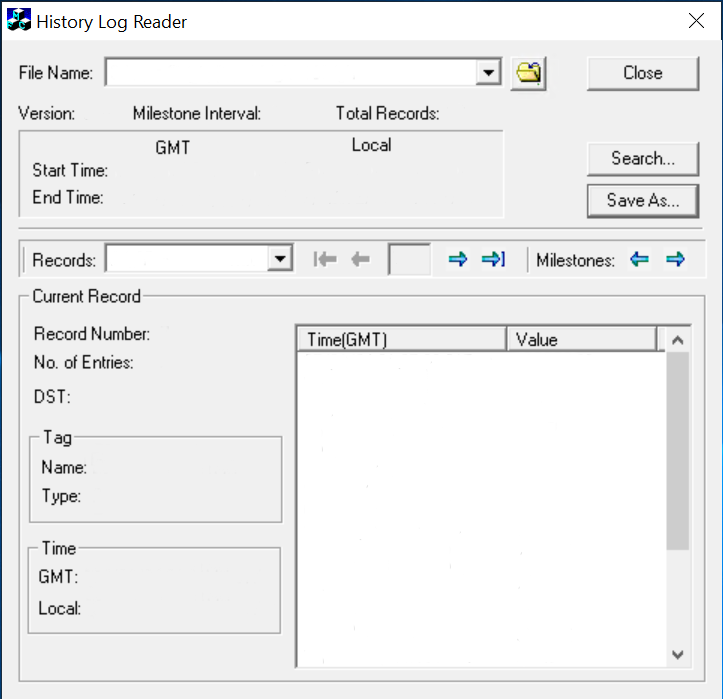
The interface tells you the file version, milestone interval, total record count, and the start/end times in both GMT and local. The tag dropdown and record navigation buttons let you move through entries one at a time. For the kind of question I described above — did this tag do this at this time — it answers the question in about thirty seconds.
I think that is a well-scoped tool for its intended job. It just so happens that the intended job is narrower than what most engineers end up needing.
Where It Stops Being Enough
The first practical hurdle is availability, and I will be blunt about it: you cannot download HistLogReader. It is not on the AVEVA customer portal, not in any installer package, and not available through any public channel. It exists only as an executable that AVEVA Tier 2 support engineers use internally. Unless a support engineer happens to send you a copy during a troubleshooting session, you simply do not have access to this tool.
The second is version coverage. HistLogReader was built around the InTouch 9.5 era. The LGH binary format has changed across 10.1, 2014, 2017, 2020, 2023, and 2026 — tag name sizes shifted, record layouts were adjusted, and the 2023 format change in particular broke compatibility with older readers. A file from InTouch 2023 or 2026 may not open, or may open with incorrect values.
The third, and the one that matters most day to day, is that HistLogReader processes one file at a time with no filtering. You open a file, you see all records for the selected tag, you export what you see. If your archive has forty files across three folders and you need six tags over a two-week window, you are doing forty manual open-navigate-export cycles. There is no time range picker, no tag filter, no batch mode, and no interval-based output.
None of this is a knock on the tool. It was designed to let a support engineer verify a single value in a single file during a troubleshooting call, and for that purpose it is fast and clear. The friction shows up when the task grows — more files, newer versions, a need to narrow the output before exporting. That is simply a different job.
What ITHistExporter Does Differently
When I started building ITHistExporter, the starting point was exactly the gap described above: I needed to open LGH files from different InTouch versions, across multiple files, with control over which tags and which time range ended up in the output.
The version support goes from InTouch 5.1 through 2026, including the long tag name format and the structural changes in recent versions. The Scan Lgh Files feature finds history files across folders so you do not have to hunt through directories manually. The Export Filter lets you select specific tags and a time range before exporting, which keeps the output focused.
For report-oriented work, Fit Data places values on a configured time interval. For investigation work, Raw Data preserves the original sample sequence. Both CSV and JSON are supported. And like HistLogReader, none of this requires InTouch, WindowViewer, HistData, or a Historian license on the machine doing the export.
To put it honestly: HistLogReader and ITHistExporter were built for different scopes. If your task is to check one value in one old file and you already have the tool, HistLogReader is faster because there is nothing to configure. If your task is to export twelve tags from forty files covering three months and hand the result to a compliance report, the workflow HistLogReader gives you will feel very long, and ITHistExporter was designed for exactly that kind of job.
Choosing Between Them
The practical reality is that most people who search for HistLogReader cannot get it, because it is an internal AVEVA utility. So the real choice is usually between HistLogReader (if a support engineer happens to provide it) and whatever else is available.
For recurring LGH export work, multi-file archives, newer InTouch versions, or any situation where you need tag and time filtering, ITHistExporter is what I built and what I would reach for. The free 7-day trial lets you check whether your files open correctly and whether the export workflow fits your process. Use a tag with a known value as a reference point when comparing the preview with the exported CSV.
And if you only need to glance at a single old file and HistLogReader is already on your desktop, use it. It does that one thing well. Just keep in mind: you cannot download it. It is not available through any public channel.
Download ITHistExporter (free 7-day trial):
https://www.wmkit.com/archives/products/intouch-historical-data-exporter